

Databricks has recently extended natively supported data formats with Excels!
What would it take for you to trust your Databricks pipelines in production?
A 3-day bug hunt on a 3-person team costs up to €7,200 in lost engineering time. This workshop teaches you to prevent that — unit tests, data tests, and integration tests for PySpark and Databricks Lakeflow, including Spark Declarative Pipelines.

Konieczny
If you have a data processing workflow for Excel running on Databricks, no more need to import 3rd party Python packages, or use Pandas (although both remain a valid approach!). You can use PySpark or even SQL to query your Excel files!
Excel in SQL
Reading Excel files on Databricks can be summarized to these two operations:
- spark.read.excel(...)
- SELECT * FROM read_files(..., format="excel")
Simple, isn't it? Let's take an example of the file looking like this:
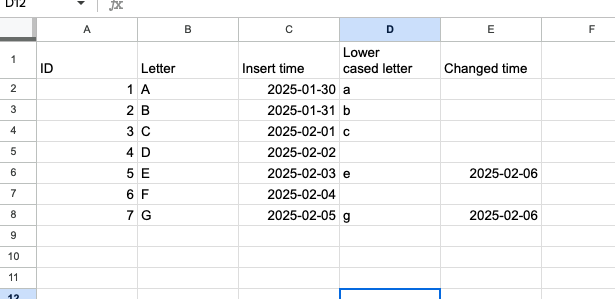
To query this Excel file you need to write a query like:
SELECT * FROM read_files(
  "/Volumes/wfc/excel_tests.xlsx",
  format => "excel",
  headerRows => 1,
  schemaEvolutionMode => "none"
)
Although the query looks simple, you might be asking yourself, what is the purpose of this schemaEvolutionMode => "none" parameter? To answer this question, we need to return to the read_files function:
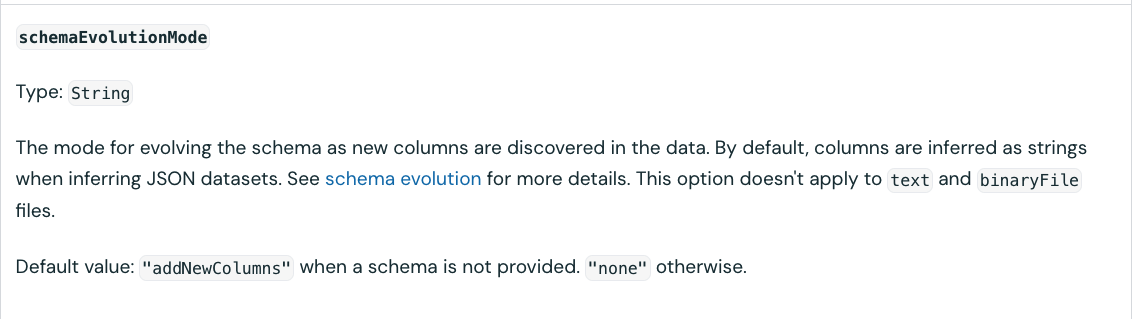
Put differently, when you are processing a file and the reader encounters different schemas, like it might happen for JSONs for example, you can configure the file_reader function to add new encountered columns dynamically. However, this attribute is not supported by Excel which expects a static schema. If you try to set anything else than none, you will encounter this error:

This option makes sense and let me explain why. If your Excel file contains a single sheet, you should be OK even without the schema evolution. After all, there is a header with the columns used as the input schema. On another hand, if you have multiple sheets to process and need they have heterogenous schemas, the read_files won't work as it only supports a single sheet. Consequently, no need for schema evolution! However, despite this single-sheet limitation, you might still need to combine multiple sheets.
To see what happens when your Excel is heterogeneous, let's add a new sheet to our example. This extra sheet has the same number of columns but the first two columns are named differently:
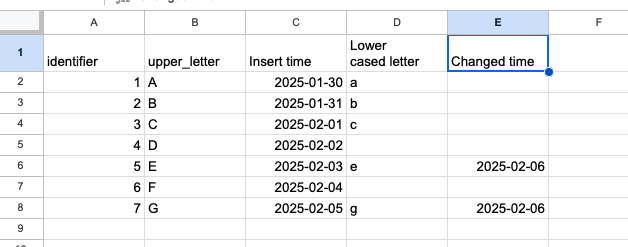
To target both sheets, we'll have to use the following SELECTs combined with an UNION...:
SELECT * FROM read_files(
  "/Volumes/wfc/excel_tests.xlsx",
  format => "excel",
  headerRows => 1,
  dataAddress => "Sheet1",
  schemaEvolutionMode => "none"
)
UNION ALL
SELECT * FROM read_files(
  "/Volumes/wfc/excel_tests.xlsx",
  format => "excel",
  headerRows => 1,
  dataAddress => "Sheet2",
  schemaEvolutionMode => "none"
)
Since our example has the same columns with the exactly the same order, the UNION ALL will do the job and correctly resolve each column by position. But if you had a completely different schemas, you will have to add an additional schema mapping step to your processing logic, such as a subquery.
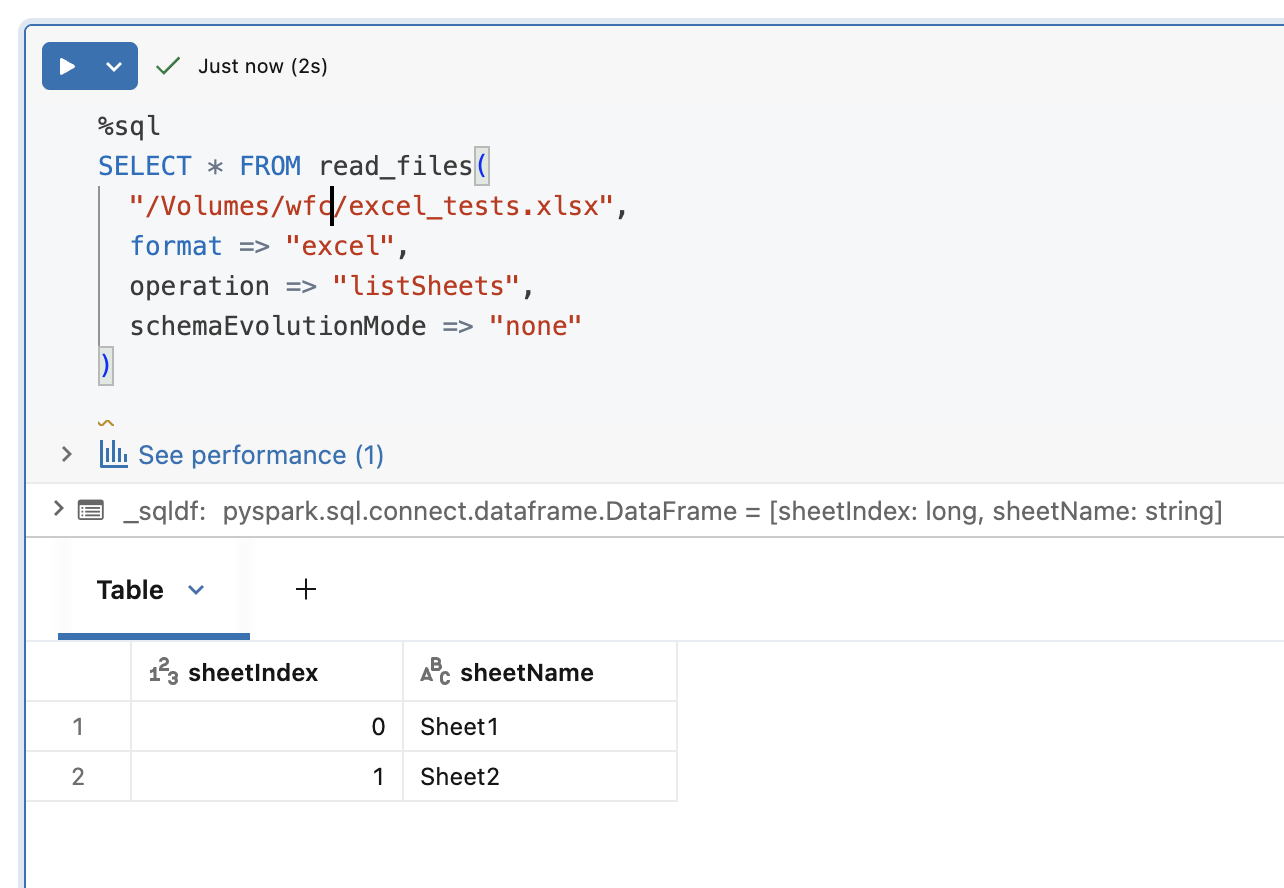
In addition to selecting the rows, you can also analyze the metadata and list the sheets present in the file by setting the operation => "listSheets" in the read_files:
Excel in PySpark
If you prefer to work with the Python API, you can leverage the PySpark DataFrame readers to process Excel files. In addition to the functions supported by both APIs, you can also leverage Autoloader to ingest Excel files from your object store to a Delta Lake table. The difference with other supported formats here is the schema evolution that must be explicitly set to "none", following the rule already discussed for the read_files function.
Before I let you go, I need to show one last thing that is supported for SQL and PySpark APIs. If your Excel is really complex and for example contains multiple tables in the same sheet, you can locate them with the dataAddress attribute. Let's see this in action in PySpark this time:
spark.read
  .option(dataAddress="Sheet1!A6:E8")
  .schema("id INT, upper_letter STRING, insert_time DATE, lower_letter STRING, changed_date DATE")
  .excel("/Volumes/wfc/excel_tests.xlsx")
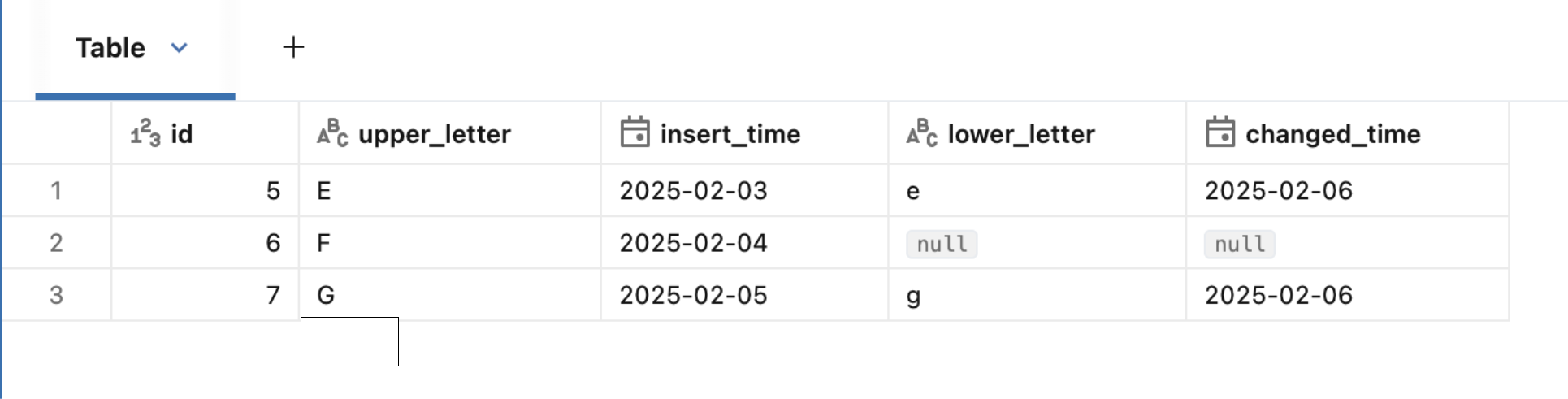
As you can notice, our example extracts three rows from the file by using the dataAddress feature. Besides, it also defines the schema explicitly which is something you can also do in SQL with the schema => ... option.
Excel files are yet another great addition to Databricks data processing capabilities. Whether you are a data analyst comfortable with SQL, or a data engineer proficient in Python, you are now be able to process Excel files without installing any additional modules, even for exploratory analysis!
Data Engineering Design Patterns

Looking for a book that defines and solves most common data engineering problems? I wrote
one on that topic! You can read it online
on the O'Reilly platform,
or get a print copy on Amazon.
I also help solve your data engineering problems contact@waitingforcode.com 📩
Read also about Excel processing on Databricks here:
Related blog posts:
- Lakeflow Jobs, when it can and can't be a default data orchestration setup?
- Medallion layers, do you need them all?
- Python script tasks on Databricks